Name the deal in a date reminder, and set a follow-up time when the step runs
A contract-review reminder can name the deal that triggered it, without a second lookup. Separately, a follow-up time on a contact can be filled in when the step runs, instead of a time you typed in advance.
- Creator Platform

When a date arrives without the record you need
A contract review date comes due, and the reminder does not say which deal it is for. A deal is the record for a possible sale. Someone still has to look that deal up before they know what to review. A follow-up time is a different problem. It often has to be typed in advance, even when the workflow has already worked out when to follow up.
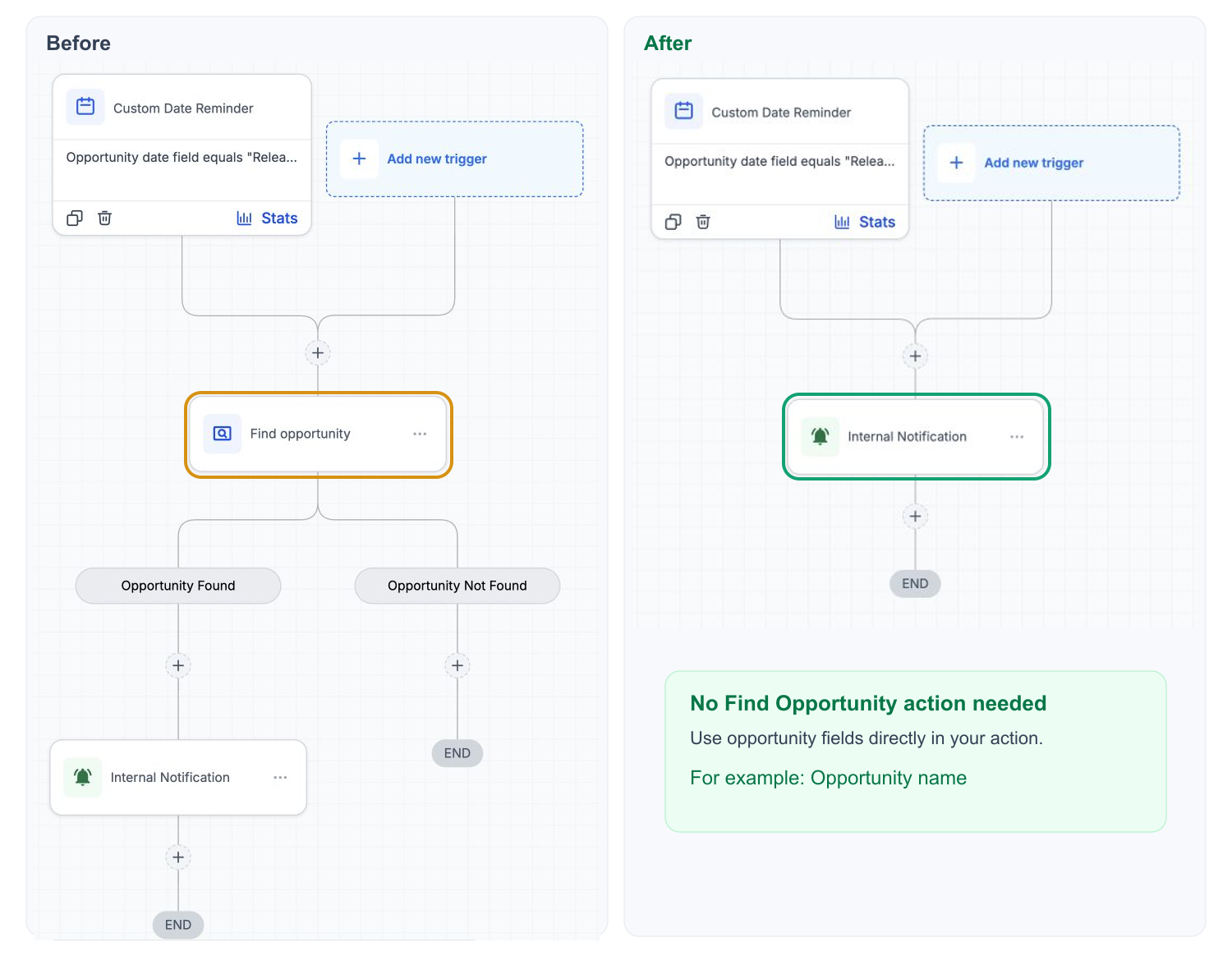
Use the deal that triggered the reminder
A workflow is a saved sequence that starts when something happens, then runs the steps you chose. Custom Date Reminder is the trigger that starts from a saved date. When that date is on the deal, the next steps can use that deal's name and its other fields, including custom fields. You do not add Find opportunity, the step that looks a deal up, to fetch the same deal again.
In an internal notification, a message to someone in your account, you can include the deal name. Deal fields are under Opportunity in the value picker. For example, Review {{opportunity.name}} and confirm the next steps. If the deal is named Acme Annual Contract, the message reads Review Acme Annual Contract and confirm the next steps.
You can send that notification to the person who owns the deal, or to the people following it. In the picker those choices are labeled Owner of the opportunity and Opportunity followers.
This works only when Custom Date Reminder uses a date field on the deal. A reminder based on a contact date is unchanged. Workflows you already saved keep working.
Set a follow-up time when the step runs
Saving that follow-up time is separate from the deal reminder. The reminder does not fill the contact field.
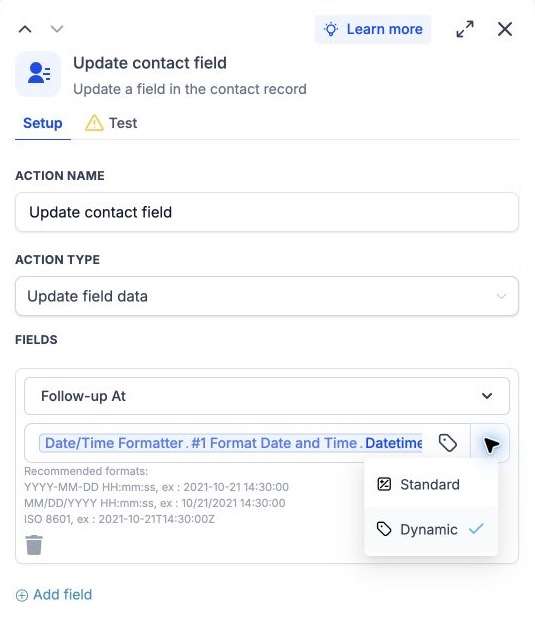
When a workflow creates a contact, or updates a field on a contact, a Date-Time custom field can store a value that is resolved when the step runs. A Date-Time field holds a date and a time on the contact. Choose Standard to keep a fixed date and time. Choose Dynamic to use a value from the run.
The value can be the output of Format Date and Time, another date field, or a date tag. Add Format Date and Time earlier in the workflow if you want its output. Open the field menu and choose Dynamic, then pick the source. Use a supported format, such as YYYY-MM-DD HH:mm:ss. In the setup example, Follow-up At uses a Format Date and Time output and Dynamic is selected. When the step runs, the field stores the time that was resolved. The setup example does not show a saved contact.
A date with no time is stored at 12:00 AM in the account time zone. If the value is empty or invalid when the step runs, only that field is skipped. Other fields still update, and the execution log for that run explains why. Changing between Standard and Dynamic clears the value currently entered. A fixed Date-Time value you already saved keeps working. Separate Date and Time fields are unchanged.
Where to set this up
Open Automations, then Workflows, on Creator Platform. You need permission to edit workflows in this account.