Track appointment stages with your own statuses
A Labs option lets you name appointment stages and use them in workflow triggers, actions and filters. Six underlying states keep availability and notification behavior separate from your labels.
- Creator Platform

Name the stage your team needs
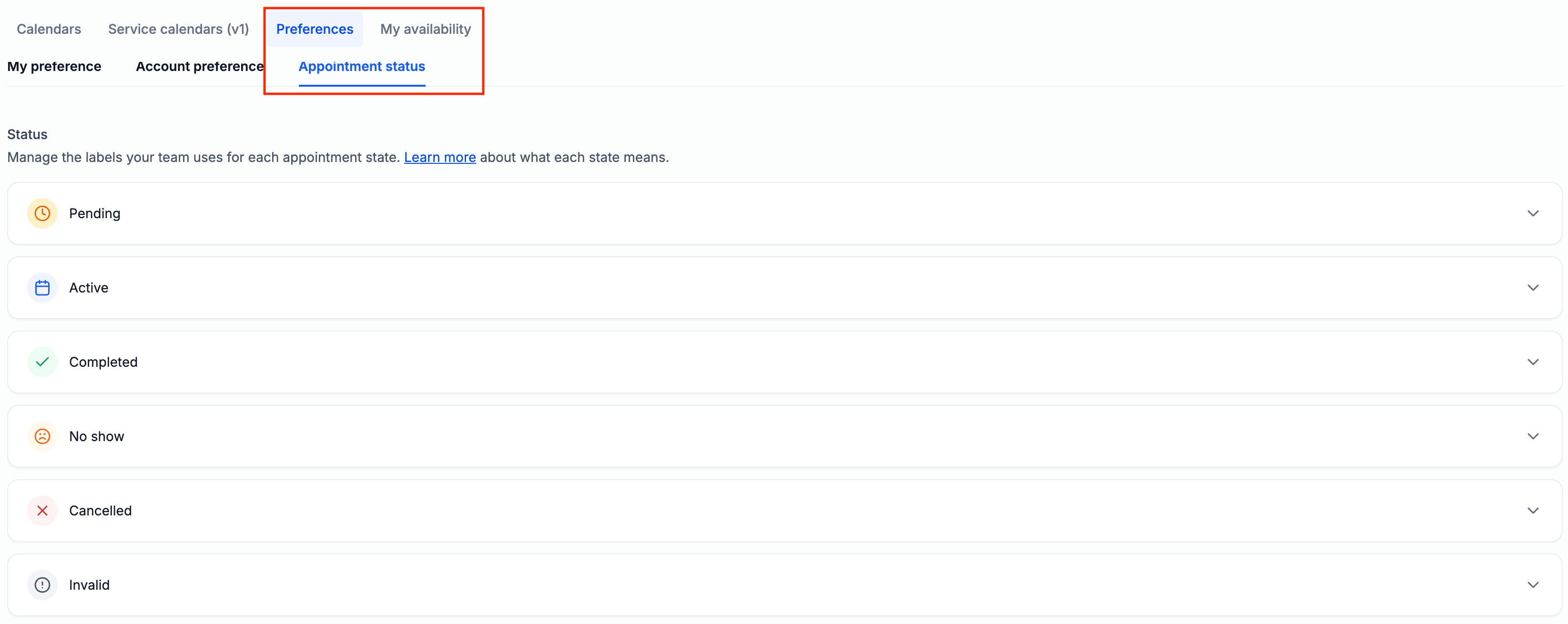
With Custom Appointment Statuses enabled in your location's Labs, open Calendars → Calendar Settings → Preferences → Appointment status. Add labels such as Checked in or Awaiting documents within Pending, Active, Completed, No show, Cancelled or Invalid. Existing status labels carry into their matching states.
Pending and Active hold the time slot. The other four states release it for new bookings. Moving between labels within the same state changes the label without triggering calendar updates or notifications.
Use the exact stage in a workflow
Custom labels appear in supported workflow triggers, actions and filters, so a follow-up can depend on the appointment stage. Renaming a label updates it in workflows. Review a workflow before enabling actions that contact people.
Archive a label to remove it from new selections while retaining it on existing appointments. Review the archive impact, including affected workflows, before confirming; archived labels can be restored. Individual class attendees can also have custom appointment statuses.