Clearer booking answers and reminders in your language
Find out why a time is unavailable and use localised default booking notifications while preserving the messages you have already customised.
- Creator Platform

Ask what is blocking a booking
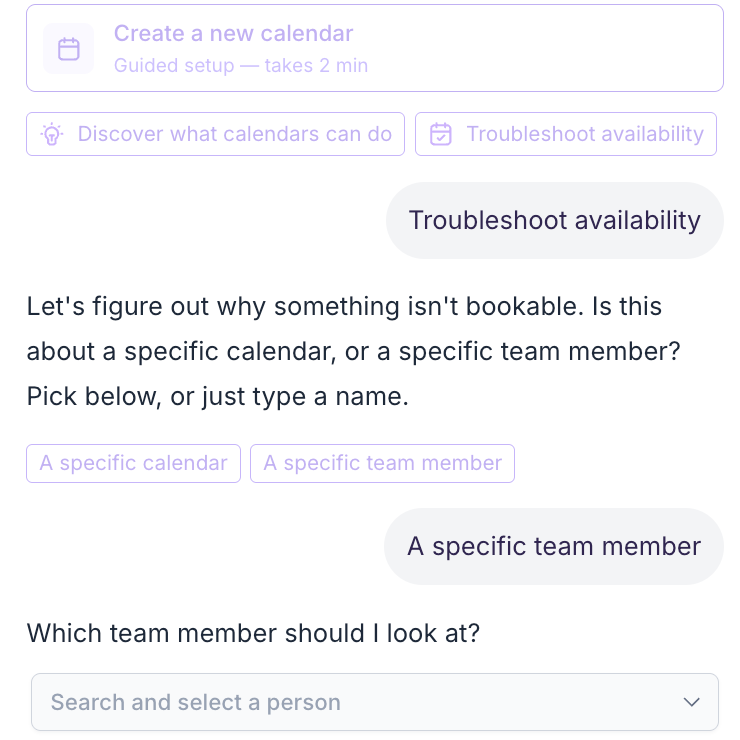
In workspaces with the native Calendar AI assistant, choose Troubleshoot availability or ask about a time, a day, a calendar or a team member. The assistant can ask which schedule you mean when the request is ambiguous.
The public example labels Calendar AI Beta. Existing calendar permissions apply. When the reason service cannot return a clear answer, the assistant points to the full Troubleshooting View rather than supplying an unsupported explanation.
Start with the business language
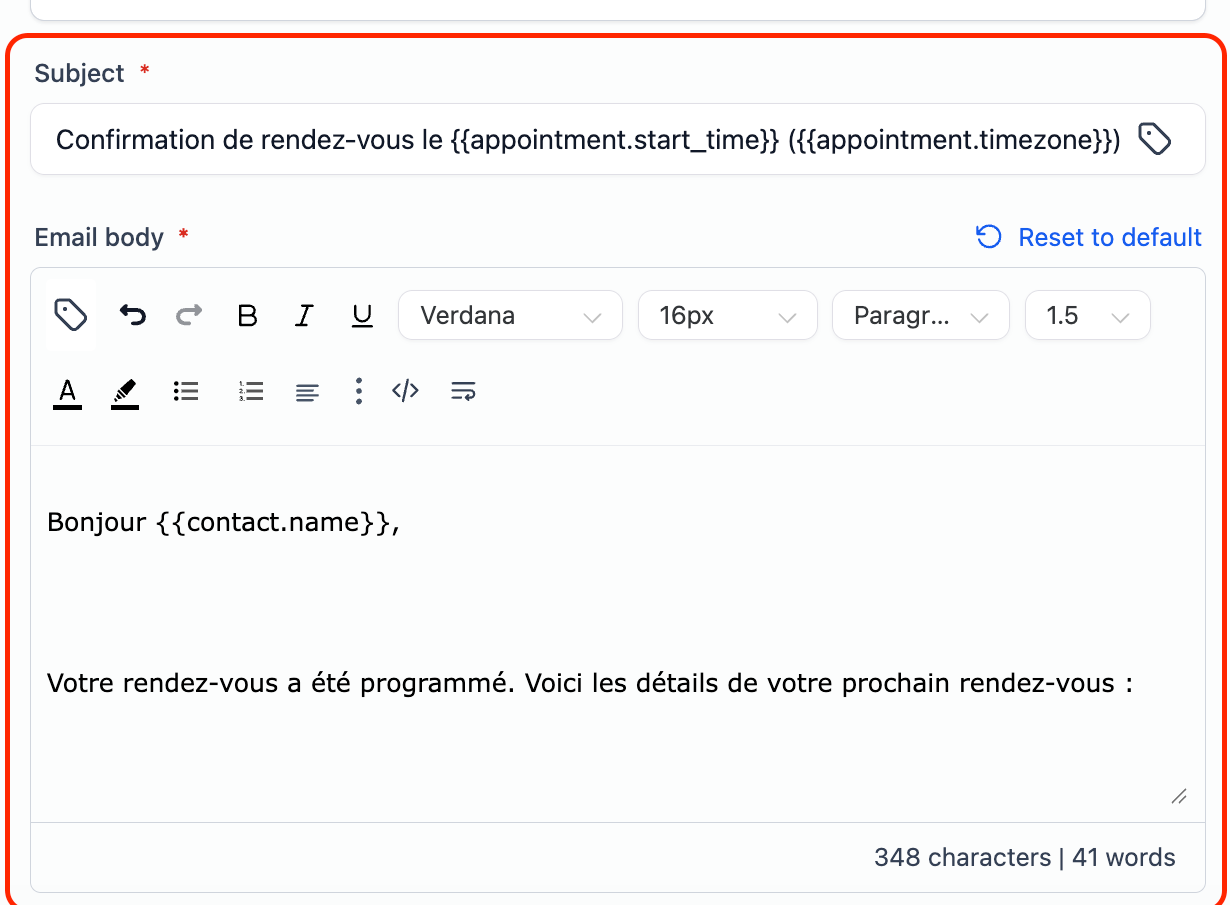
New calendars, Services and Rentals can use localised default notifications based on Business Profile → Platform Language. This covers the email, SMS and WhatsApp notification types each product supports.
The language comes from the business profile; it is not chosen independently for each recipient.
Keep existing messages intact
Existing notification templates keep their saved content. To use a localised default, open Calendar Settings → Notifications, or Services/Rentals → Global Settings → Notifications, and review the relevant Reset to Default option.
Customised messages are preserved until you intentionally replace them. Review the result before saving a reset so a translation change does not discard wording your team needs.