Update matching records when you import from HubSpot again
You imported a contact last month. This week their company name changed in HubSpot. A later import can now update that match instead of leaving the old name in place. Skip is still the default, and an overwrite cannot be undone.
- Creator Platform

The second import left the old company name
You imported a contact last month. This week the company name changed in HubSpot. You import again. The contact is already in the account, so the import skips the match and the old company name stays.
A duplicate is a record the import matches to one already in the account. Skip duplicates is still the default. Matching records are left as they are. A record with no match is still created.
Overwrite replaces the values that differ
Choose Overwrite existing records and the matching contact takes the new company name. HubSpot values replace values that differ, for the fields included in that import. A field left out of the import stays as it is.
The update covers contacts, deals, companies, tasks and notes, and also custom fields, custom folders and pipelines. In the import menu, deals are listed as Opportunities. A custom field keeps its original field type. Pipeline stages keep their order.
The import matches on your duplicate rules, which always include the HubSpot record ID. On the Handle duplicates screen, it checks the primary identifier first, then the secondary identifier. If neither matches, it creates a new record.
Overwrite replaces existing values and cannot be undone. If your team has edited imported records in this account, export a backup before you choose it. This is an import you start. It does not watch HubSpot and update records on its own.
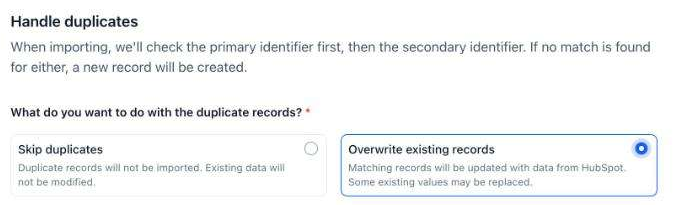
Choose it before you confirm
Open Contacts, Companies or Opportunities, then Import, and choose Import from HubSpot. You need an authorized HubSpot connection and permission to import in this account. Leave Skip duplicates selected unless you want matching records updated.
Review the counts on Preview and import, then choose Confirm and start import. When the import finishes, open Import details from Import history. It shows how many records were created, updated and skipped. In the record view, you can filter by Updated.
To bring across only records that changed since the last import, use the HubSpot Last Modified Date filter. That filter is already part of the importer.